| title | Lesson 2: Specify Connection Information (Reporting Services) |
|---|---|
| description | In this lesson, you define a data source: connection information the report uses to access data from a relational database or other sources. |
| author | maggiesMSFT |
| ms.author | maggies |
| ms.date | 12/09/2019 |
| ms.service | reporting-services |
| ms.subservice | reporting-services |
| ms.topic | conceptual |
| ms.custom | updatefrequency5 |
In lesson 1, you added a [!INCLUDEssrsnoversion-md] paginated report to your Tutorial project.
In this lesson, you're going to define a data source, connection information the report uses to access data from a relational database or other sources.
For this report, you're going to add the [!INCLUDE sssampledbobject-md] sample database as your data source. This tutorial assumes that the database is located in the default instance of [!INCLUDEssNoVersion] [!INCLUDEssDE] and installed on your local computer.
-
In the Report Data pane, select New > Data Source. If the Report Data pane isn't visible, then select View menu > Report Data.
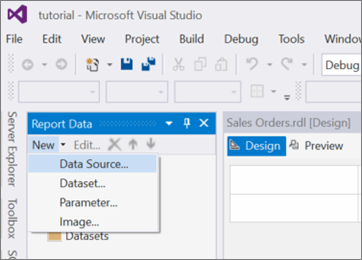
The Data Source Properties dialog box opens with the General section displayed.

-
In the Name text box, type "AdventureWorks2022".
-
Select the Embedded connection radio button.
-
In the Type dropdown selection box, select "Microsoft SQL Server".
-
In the Connection string text box, type the following string:
Data source=localhost; initial catalog=AdventureWorks2022[!NOTE] This connection string assumes that [!INCLUDEssBIDevStudioFull], the report server, and the [!INCLUDE sssampledbobject-md] database are all installed on the local computer.
Change the connection string and replace "localhost" with the name of your database server/instance if the assumption isn't true. If you're using [!INCLUDEssExpress] or a SQL Server named instance, you need to modify your connection string to include instance information. For example:
Data source=localhost\SQLEXPRESS; initial catalog=AdventureWorks2022For more information about connection strings, you can refer to the
See alsosection below. -
Select the Credentials tab, and under the section Change the credentials used to connect to the data source, select the Use Windows Authentication (integrated security) radio button.
-
Select OK to complete the process.


Report Designer adds the data source AdventureWorks2022 to the Report Data pane.

In this lesson, you've successfully defined a connection to the [!INCLUDE sssampledbobject-md] sample database. Continue with Lesson 3: Defining a Dataset for the Table Report (Reporting Services) to define a dataset for the report.